1. Identity setup
Do this first. Without it, nothing can prove who it is.
The gateway does not check credentials itself. It checks them against an identity service that runs inside your project's data plane, and that service has to be switched on before the gateway is any use.
This is done once per project, from Account Settings → Identity.
This page lives in Account Settings, not project settings, and only an account admin can change it. If the Dataplane IDP tab is not visible for your account, contact Onehouse.
Identity prerequisites: Dataplane IdP and identity provider
They sit on two tabs of the same page. Only one of them is required.
| Step | Where | Mandatory (for AI Gateway) | When |
|---|---|---|---|
| Enable your project | Dataplane IDP tab | Yes | Always. The gateway cannot be enabled until this is done. |
| Configure an identity provider | OIDC tab | No | Only when people will use the gateway. Headless agents do not need it. |
Until your project is enabled on the Dataplane IDP tab, nothing can authenticate against the gateway — not a person, not an agent. Enable AI Gateway stays disabled until then, and its message links you straight to that tab.
An agent authenticates against the identity service directly, so a project served only by headless agents needs no provider of yours. You need one when people will sign in and mint their own tokens.
What enabling does
Enabling a project stands up the identity service inside that project's data plane, and makes your identity provider the one that governs access there. Your sign-in rules are applied once and honoured across the data plane, and nothing about them leaves your cloud account.
Signing in to the Onehouse console is unaffected and stays exactly as it is today — that is Single Sign-On, configured separately. This page governs access to services running in your data plane, nothing else.
What you will need
Only if people will use the gateway: your identity provider's discovery address, a client ID, and that client's secret.
→ OIDC Federation has every field and what to put in each one. Dataplane IdP covers enabling the project.
If people will sign in: register callback addresses first
Skip this section if only agents will use the gateway.
Each project has its own callback address, listed beside it in the Project deployments table on the Dataplane IDP tab.
Copy each one and add it to the client you registered for Onehouse in your identity provider, in whichever field it calls redirect URI. Then come back and enable.
The oh CLI's oh ai-gateway login signs people in through the same address. It needs no extra redirect URI.
A callback address cannot be changed once tokens have been issued against it. Register every address with your provider first, then enable.
→ Step by step: Add it to your identity provider
Enable the project
- Go to Account Settings → Identity.
- Open the Dataplane IDP tab.
- Find your project in the Project deployments table, and choose Enable.
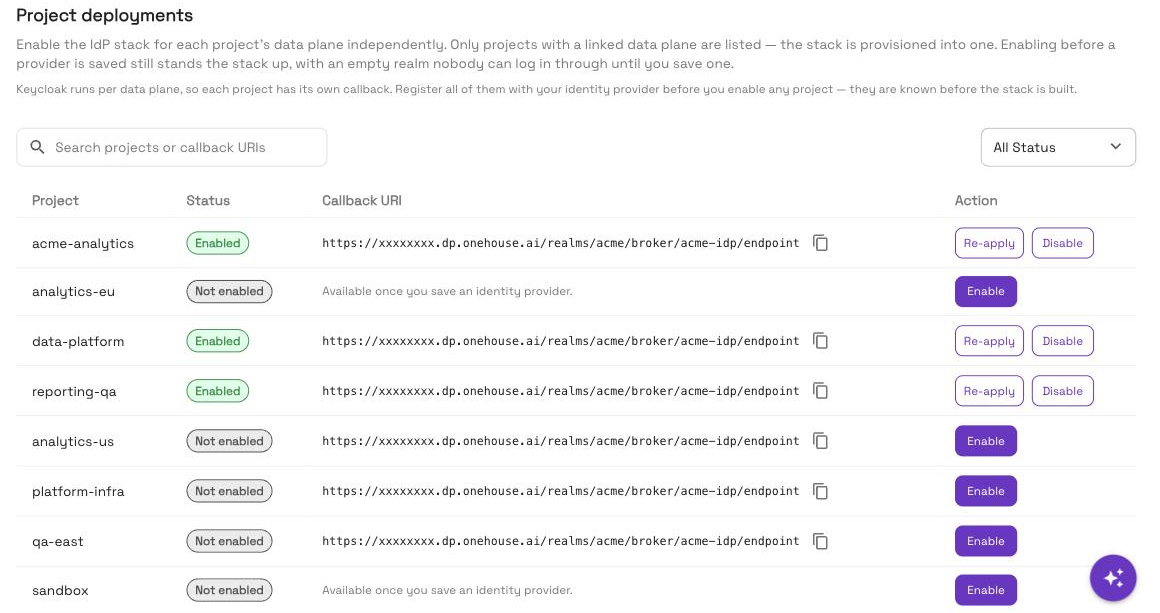
The row moves to Provisioning while the stack comes up, then to Enabled. A Failed row keeps the reason on its status label — hover it, fix the cause, and choose Retry.
If you enable the project first and save an identity provider afterwards, the running project will not pick it up. You have to disable and re-enable it — and disabling deletes that project's identity database. If people are going to sign in, save the provider first.
If your project is not in the list
Only projects with a linked data plane appear. A project shows up once its data plane has finished linking.
→ Full reference: Dataplane IdP and OIDC Federation