5. Models & Providers
Connect where models run. Publish one name your clients call forever.
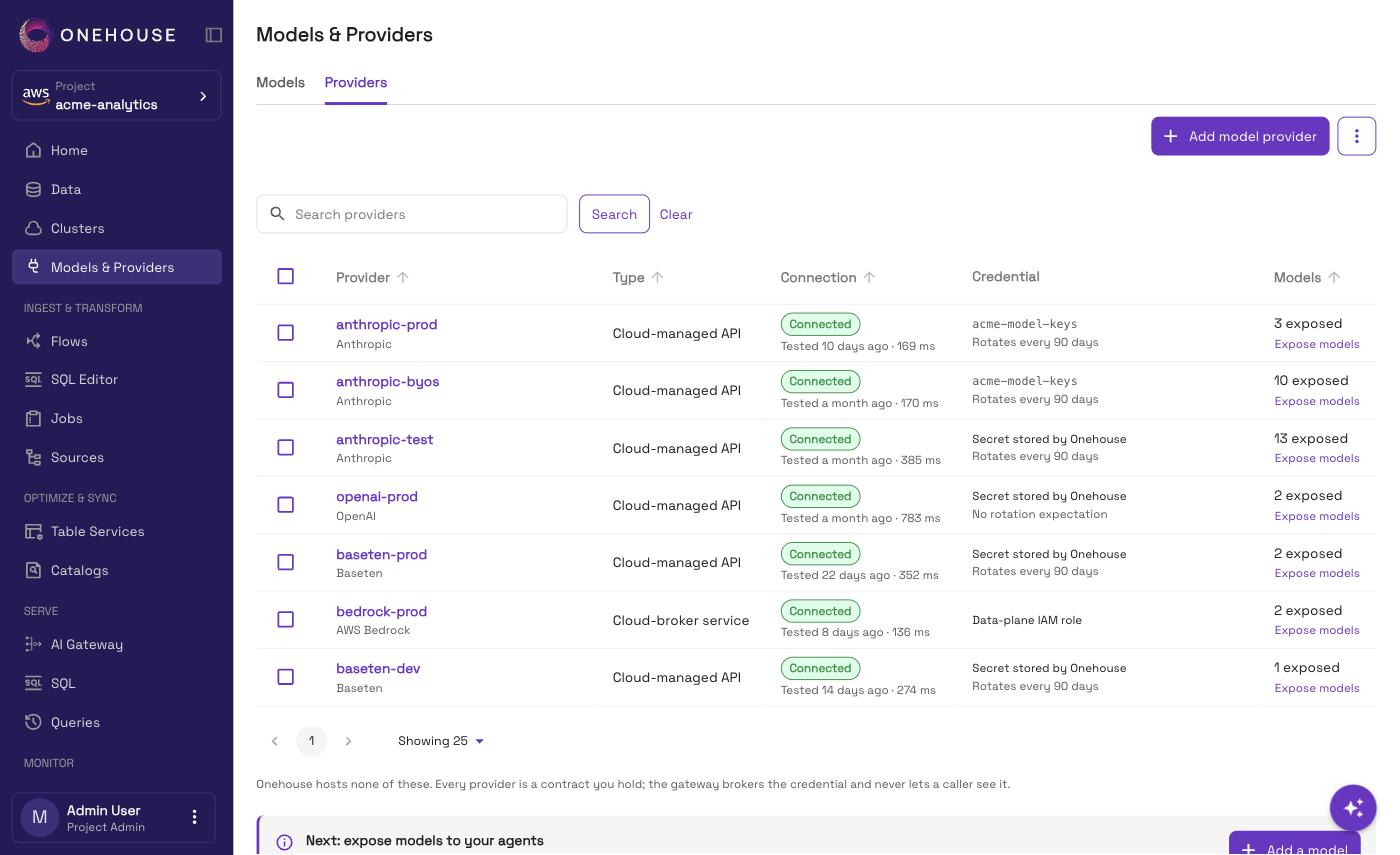
Two things live on one page, in two tabs:
| Tab | What it holds |
|---|---|
| Providers | Where the models actually run — a contract you already hold with a vendor. |
| Models | The names your clients call. Each one routes to one or more providers. |
Open Models & Providers in the left navigation, just under Clusters.
Project admins and account admins can add, edit and remove providers and models. Project readers and account readers can view them. Other project members cannot open the page.
A model you publish can route to several providers, so the two lists sit side by side rather than one inside the other.
Connect a provider
On the Providers tab, choose Add provider, then pick one:
| Provider | How it gets its credential |
|---|---|
| Anthropic | An API key — from your own secret store, or stored by Onehouse. |
| OpenAI | An API key — from your own secret store, or stored by Onehouse. |
| Baseten | An API key, plus your Baseten base URL. It is prefilled with https://inference.baseten.co/v1; a dedicated deployment has its own. |
| AWS Bedrock | No key. The gateway calls Bedrock as your data plane's own IAM role. |
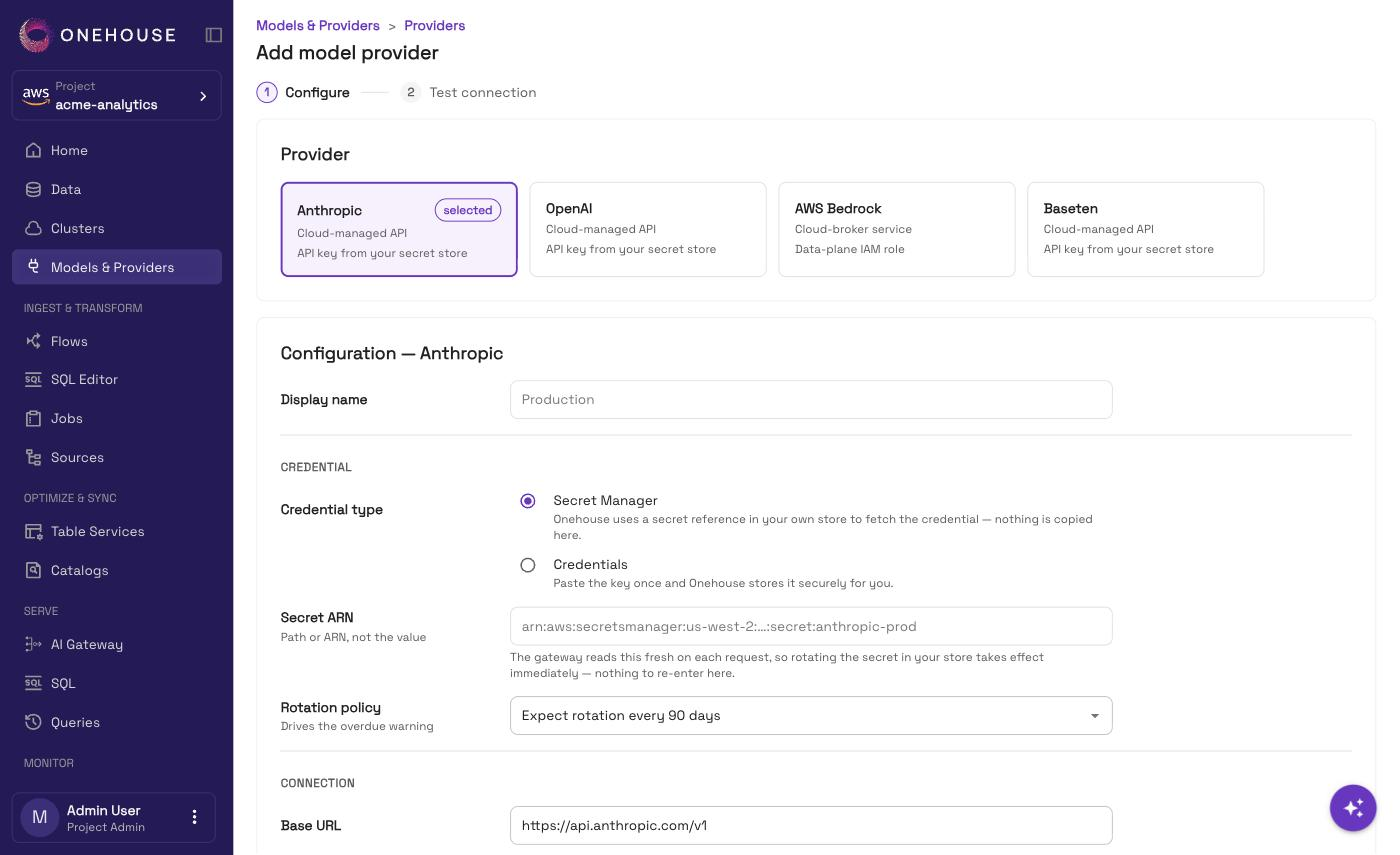
Give it a Display name. For the three key-based providers, choose where the key lives with Credential type:
| Credential type | What happens |
|---|---|
| Secret Manager | You give the reference to a secret in your own store: its ARN on AWS. The gateway reads it on each request. Nothing is copied. |
| Direct credential | Paste the key once. Onehouse stores it and never shows it again. AWS projects only. |
On AWS the gateway reads your secret as your data plane's IAM role, which may read only secrets tagged accessibleTo = onehouse. A secret without the tag fails the test as secret not readable. Store the key as JSON under apiKey — {"apiKey": "<key>"} — not as plain text. See Secrets Management.
Paste a reference, not the key itself. The form refuses a value that looks like a key (sk-, sk-ant-, AKIA…) in the reference field.
Whichever you choose, the credential stays with the gateway. A client calling through it uses only its own short-lived token.
Rotation policy
Rotation policy is Rotates every 90 days (the default), Rotates every 180 days, or No rotation. It drives an overdue warning on the provider. Nothing rotates the key for you, and nothing stops working when it is overdue.
To rotate:
- Secret Manager — rotate the secret in your own store. The gateway reads it fresh on each request, so there is nothing to do here.
- Direct credential — open the provider, choose Edit, paste the new key, pass the test, and choose Save provider.
AWS Bedrock
Bedrock holds no key, so the form asks only for a name and a base URL. Your data plane's IAM role needs Bedrock access, which you switch on in your customer stack.
The base URL decides which model families you reach:
| Base URL ends in | Serves |
|---|---|
/anthropic/v1 | Claude models |
/openai/v1 | OpenAI-API model families, such as OpenAI, Mistral and DeepSeek |
https://bedrock-runtime.<region>.amazonaws.com/anthropic/v1
- Leave the base URL empty and it defaults to your project's region with
/anthropic/v1. - It must be the Bedrock endpoint in your project's own region, or a VPC endpoint for it.
- To reach both families, add Bedrock twice — once with each base URL.
Bedrock lists every model in the region, including ones your AWS account has not enabled. Those show Not enabled and cannot be used until an AWS admin enables them once in the Bedrock console.
Bedrock appears only on projects that run on AWS.
Test before you save
Choose Test connection. Add provider stays disabled until the test passes. It checks two things in turn: that the data plane can reach the provider, then that the credential is accepted and can list models.
| Result | Means |
|---|---|
| Passed | Reachable, authenticated, and the credential can list models. |
| Failed — reachable but rejected | A credential problem, not the network. Check the key is current in the provider's console. For Bedrock, the data plane's role is refused Bedrock access. |
| Failed — unreachable | Nothing answered. Usually egress: no NAT route, or a firewall or proxy blocking outbound 443. The credential was never sent. |
| Failed — secret not readable | The gateway could not read the credential at all. Under Secret Manager, a read grant or the accessibleTo tag is missing in your account. |
| Failed — no AWS identity | Bedrock only. The data plane host has no AWS identity to call Bedrock with. Check the host's IAM role. |
| Failed — no verdict | The check did not finish. Choose Retest. |
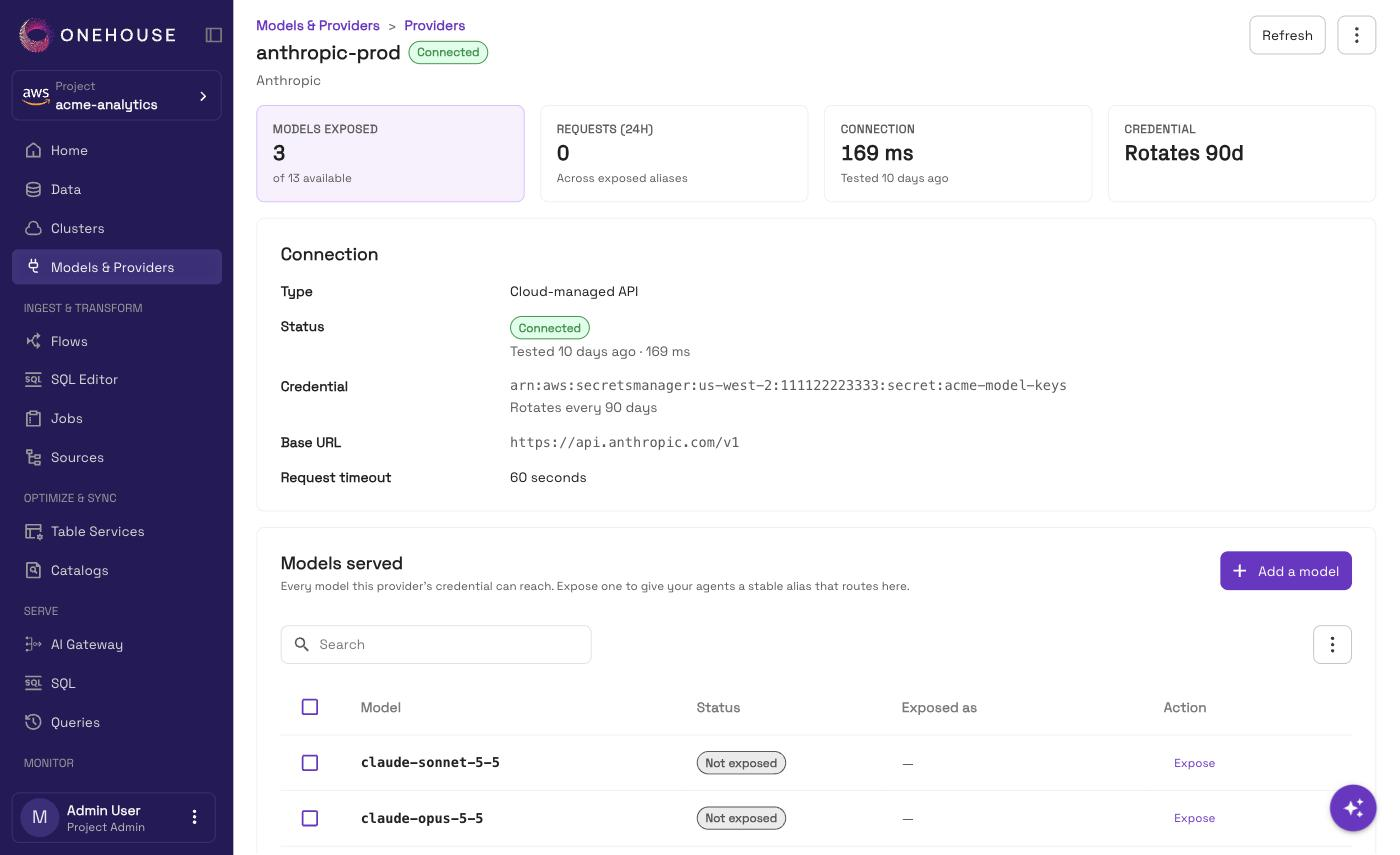
After saving you land on the provider's page: its connection settings and every model it can serve.
Change or delete a provider
- Edit reopens the form. Change any field, pass the test again, and choose Save provider.
- Delete stops the provider serving the gateway. It is refused while any model still routes to it — repoint or remove those models first.
Models a provider no longer lists
Where your project has it, Refresh providers on the Models tab re-tests every provider behind a published model and re-reads the models each one lists. It may not be available on your project yet. A model the provider stopped listing is flagged Not listed anymore, and calls to it are likely to fail. Bedrock also flags models it has deprecated, with the date they retire. Repoint the model to another destination on its Routing tab.
Publish a model
Your clients should never name a provider. They name a model you publish, and you decide what serves it.
- "model": "claude-opus-4-5-20260101"   # tied to one provider, one version
+ "model": "claude-opus-5"              # yours, stable, swappable
Change what sits behind that name and nothing in any client has to change.
On the Models tab, choose Add a model. It takes two steps:
- Pick a model from a provider you have connected.
- Configure it — its Alias name (the name your clients send as
model), its routing, and who may call it.
An alias name uses lowercase letters, digits, dots, dashes and underscores, up to 64 characters.
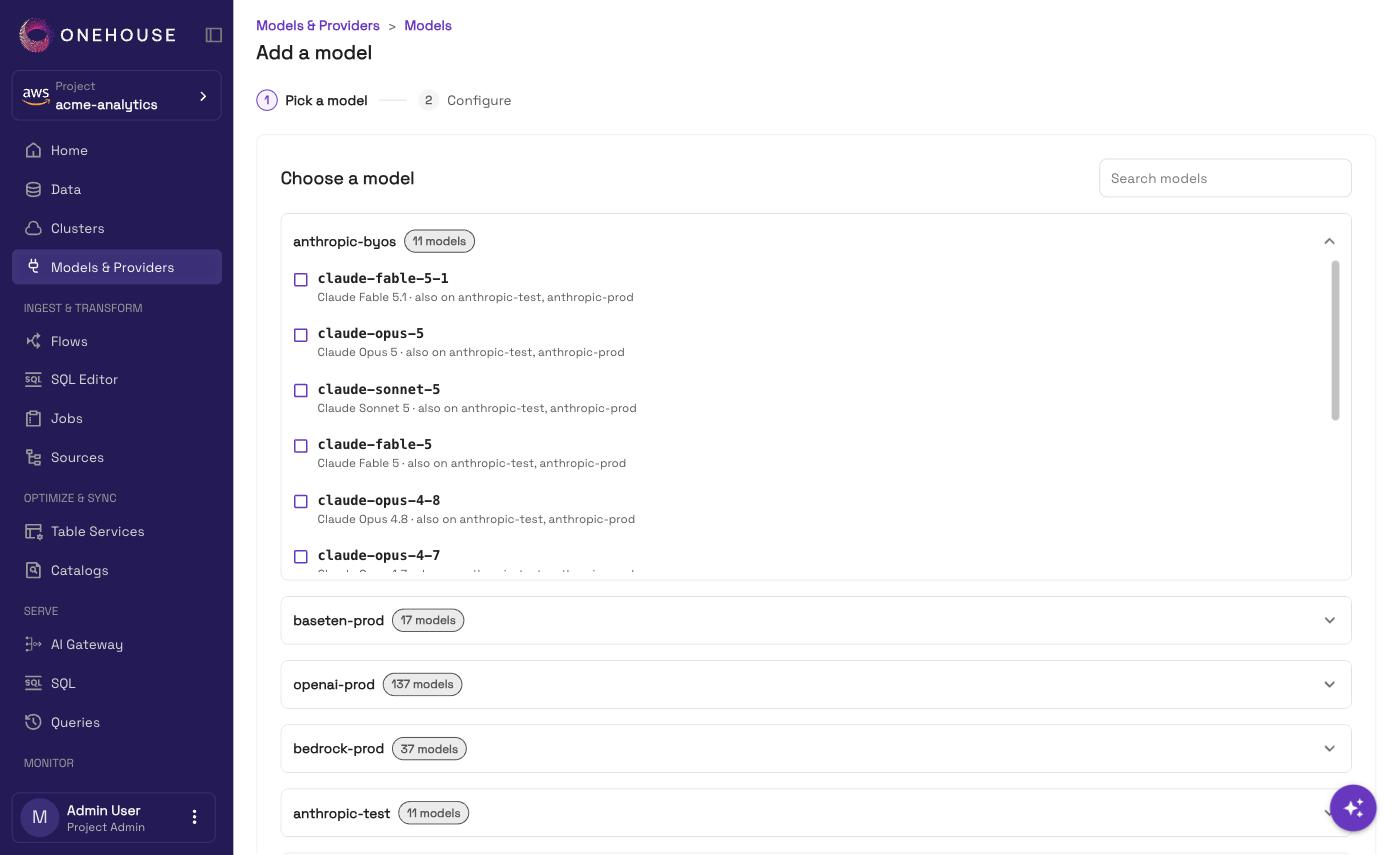
You can also start from a provider: its page lists every model the credential reaches. Select models and choose Expose to publish an alias for each.
You can pick up to 100 models in step 1 and publish them together. Each alias defaults to the provider's model id. They all start with no access, so grant it afterwards.
Each model on the Models tab has a copy button beside its name. That name is what goes in your client's model field.
Routing
When more than one provider serves the same model, weights split its traffic, and a failing provider fails over to the next. See Routing and failover.
Only a published name works
The gateway routes on the names you publish and nothing else. A client asking for a model you have not published is refused rather than quietly forwarded.
Publishing a model does not grant anyone access to it. Grant access on its Permissions tab — see Permissions.
Remove a model
Remove alias stops the gateway serving the name and removes every grant on it. It is permanent. See Routing and failover.
See what a model is doing
Open a model to see four tabs: Overview, Routing, Permissions and Activity. Activity lists its recent calls — who called, which provider served it, and how many tokens it used.