2. Enable the gateway
Turn it on once. It runs in your own cloud account.
Enable AI Gateway stays disabled until your project's identity service is running. Its message tells you what is missing and links you to the fix.
Where it lives
In the left navigation, open AI Gateway — the first item under Serve. The page has three tabs:
| Tab | What it holds |
|---|---|
| Overview | Turning the gateway on and off, its address, and a guide to everything after. |
| MCP Servers | The tool servers you register. |
| Usage | Who is calling, and through which model. See Usage. |
MCP Servers and Usage stay disabled until the gateway is live.
Before you enable
Only project admins and account admins can deploy or stop the gateway. For anyone else the button is disabled.
Enable AI Gateway also stays disabled, with a message saying why, until all of these hold:
| Blocked because | What to do |
|---|---|
| The project's identity service is not deployed | Choose Deploy IdP in data plane. See Identity setup. |
| The identity service is still deploying | Wait until it shows Enabled under Account Settings → Identity → Dataplane IDP. |
| Onehouse could not check the identity service | Choose Check on the Identity page, then reload. |
| The AWS account has no AI Gateway credential vault key | AWS projects only. Choose Update the AWS stack, re-apply your customer stack with the AI Gateway credential vault turned on, then reload this page a few minutes later. |
The project's data plane must also have finished linking.
What enabling does
- Deploys the gateway into your own data plane, in your project's region.
- Reads provider credentials from your secret store when you add them. Nothing is copied out.
- Adds no markup to what your model providers charge you.
Turn it on
On the Overview tab, choose Enable AI Gateway.
The page shows Provisioning your gateway while it deploys. This takes about 4 minutes, and you can leave and come back. If it fails, the page tells you why and returns to the start. Choose Enable AI Gateway again to retry.
Once it is live
The page title carries a status:
| Status | Means |
|---|---|
| Live | Running. |
| Live · all set | Running, and every required setup step is done. |
| Not serving | The gateway was turned off. See Turn the gateway off. |
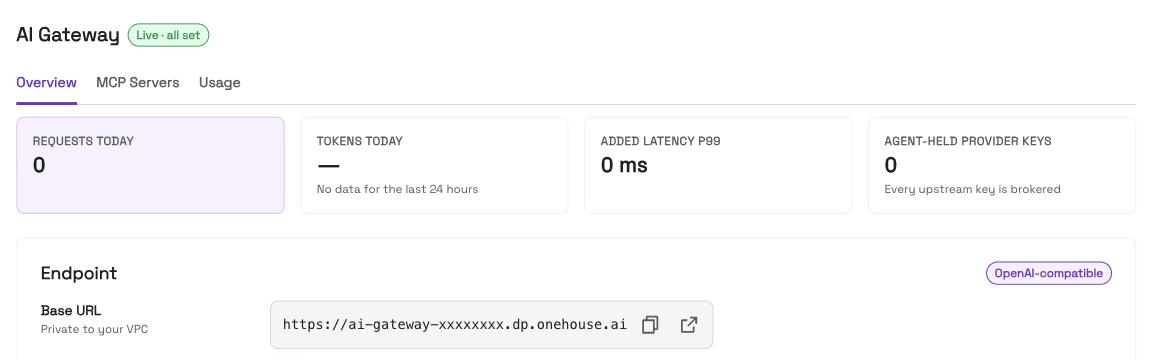
The Overview then shows, top to bottom:
- four counters: Requests today, Tokens today, p99 added latency and Agent-held provider keys
- the Endpoint card, with your base URL
- Get started, a guide to the rest of setup
- Bound service principals: the agents allowed to call. See Agent access.
- Revoked user access: people whose access you have cut off. See Revoke a person's access.
A How the AI Gateway fits together card shows the architecture. Hide diagram folds it away.
Your base URL
https://ai-gateway-<id>.dp.onehouse.ai
Copy it from the Endpoint card. Every client needs it.
The endpoint is private to your network. A client outside your VPC cannot reach it. See Connect to your VPC if you need access from a laptop.
The setup guide
Below the endpoint, Get started walks you through the rest, in three parts:
| Part | What it covers |
|---|---|
| Set up — required | Identity, enabling, a provider, a model, and access to it. Folds away once done. |
| Call the gateway | Two ways in: You, in an IDE, or A headless agent. |
| Extend and operate — optional | Add MCP servers, Grant MCP access, Route and fail over, Watch usage, and revoking a person's access. |
The Quickstart follows the same order.
Turn the gateway off
The Serving switch on the Endpoint card turns the gateway off. It does not pause it.
- Turning it off removes the gateway from your VPC. The page shows Tearing down your gateway for about 4 minutes, then returns to the page you saw before enabling. There is no confirmation step.
- While it is off, every AI Gateway tab shows a Not serving strip, and every call to the gateway fails.
- Turning it back on redeploys it. Choose Resume serving on the strip, or turn Serving back on. Redeploying takes about 4 minutes and re-runs every check in Before you enable.
Your providers, models, routing, grants and MCP servers are kept in Onehouse and come back with the redeploy. So do people's sign-ins to OAuth MCP servers. Only the running gateway is removed.