Onehouse customer stack
You apply the customer stack in step 2 of onboarding. The stack runs in your AWS account and creates the IAM roles and cluster access that Onehouse uses.
The stack does not create an EKS cluster. You create the cluster in step 1 and give its name to the stack.
Resources that the stack creates
| Resource | Purpose |
|---|---|
| Core role | The role that Onehouse assumes in your account. All Onehouse operations in your account use this role. |
| Support role | A role with fewer permissions, which Onehouse support uses to read diagnostics |
| Node role | The role of the nodes that Onehouse provisions. It gives access to Amazon S3, logs and the Onehouse image registry. |
| Controller roles | Roles for the autoscaler, the EBS CSI driver and, if enabled, the AWS Load Balancer Controller |
| IAM OIDC provider | Lets service accounts in the cluster assume the roles above. The stack does not create it if you set createOidcProvider = false. |
| EKS access entries | One entry gives the core role administrator access to the cluster. One entry lets nodes with the node role join the cluster. |
| Subnet tags | The kubernetes.io/role/internal-elb tag on the private subnets that you specify |
| Bastion host | An EC2 instance in the private subnet that you specify, with a security group and a Session Manager document. Onehouse support uses it to access the cluster. |
The stack gives Onehouse access only to the S3 buckets that you list in its configuration.
Prerequisites
This page describes the Terraform method. In step 1 of the wizard, select Terraform as the onboarding method. The wizard also offers AWS CloudFormation, which creates the same roles.
Step 2 of the wizard shows these values: RequestId, RequestIdPrefix (the first 8 characters of the request ID), Region and Environment. The names of all resources that the stack creates contain the request ID prefix.
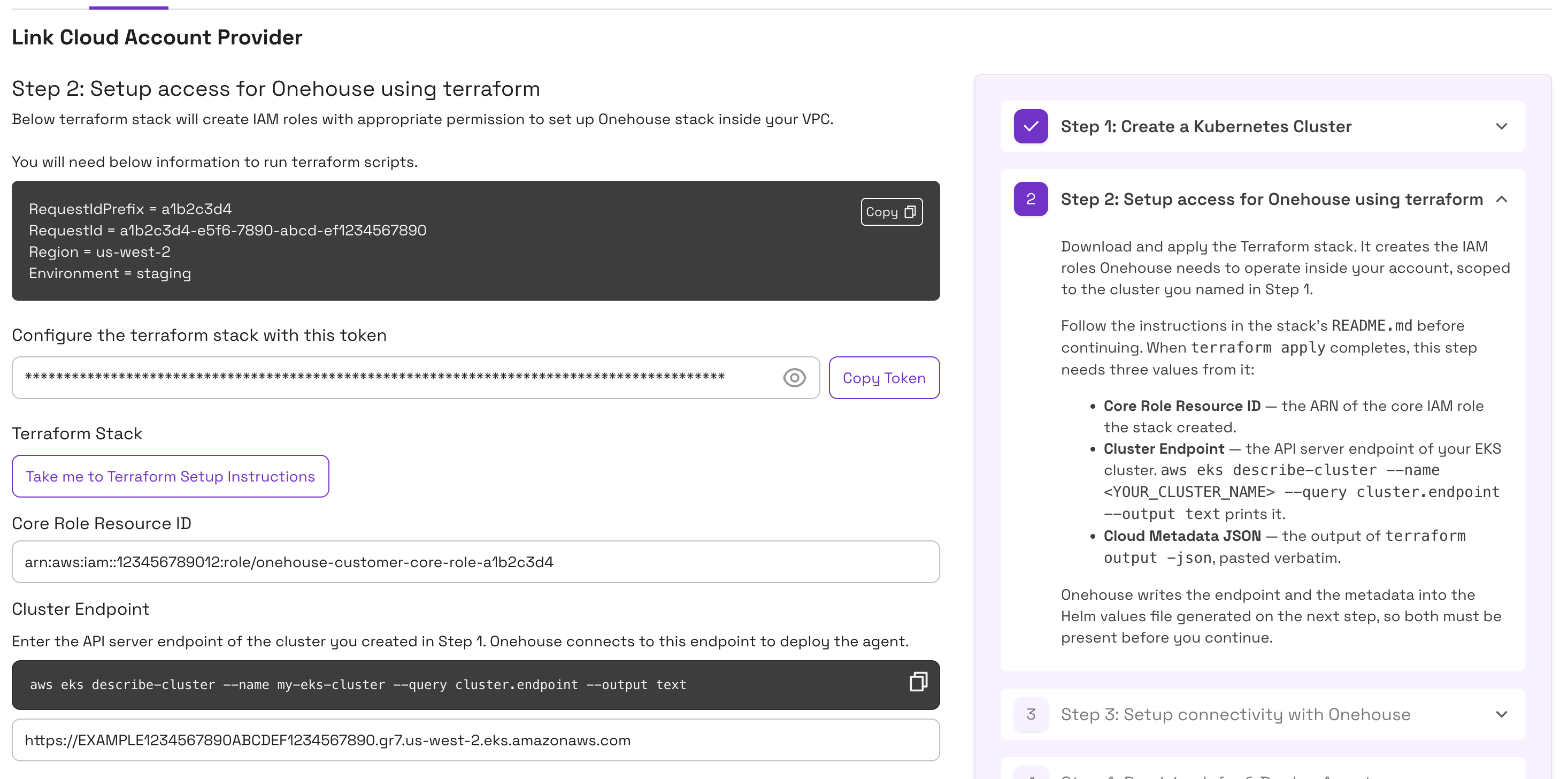
Before you apply the stack, get these values:
- The cluster name, exactly as it is in your account
- The private subnet IDs of the cluster
- The VPC ID and one private subnet ID for the bastion host
- The ARN of each seed node group role. See Seed node IAM role.
- The ARNs of the S3 buckets that Onehouse can access
The IAM principal that applies the stack must have permissions to create IAM roles and policies, an IAM OIDC provider, EKS access entries, EC2 tags, an EC2 instance and security group, and a Systems Manager document.
Apply the stack
-
In step 2 of the wizard, choose Copy Token. Use the token to authenticate to the Onehouse Terraform registry and download the module. For the procedure and the
main.tf,backend.tfandvariables.tffiles, see Install Terraform Stack. -
Create an S3 bucket with the name
onehouse-customer-bucket-<RequestIdPrefix>in the same account and Region. The stack stores its Terraform state and its configuration in this bucket. Onehouse also stores the provisioning state of the data plane in this bucket. The bucket must have this name. Do not delete the bucket while the data plane exists. -
Set the request ID, environment, Region and these inputs:
Variable Value deploymentMode"byok". The default value,"managed", does not support an existing cluster.clusterNameThe cluster name privateSubnetIdsThe private subnet IDs of the cluster customerNodeRoleArnsThe ARN of each seed node group role s3BucketArnsThe ARNs of the S3 buckets that Onehouse can access. Specify at least one ARN. If the list is empty, the plan fails with Invalid function argument.lbControllerSupport{ enabled = true }. The default value isfalse. If the value isfalse, step 4 of the wizard shows the AWS Load Balancer Controller as unavailable.createOidcProviderfalseif the cluster already has an IAM OIDC provider -
Review the variables in the next table. Set each variable to
falseif you do not use the feature. -
Apply the stack. For the commands, see Run Terraform Stack.
For the full list of variables, see Terraform Variables and the README.md file of the stack. The BYOK inputs in the table above are in addition to those variables.
Defaults to review
These variables are true by default:
| Variable | Effect |
|---|---|
clustersConfig.enableLakeformationAuthorization | Adds the node role to the AWS Lake Formation administrators. This setting applies to the whole account and Region. When you destroy the stack, the Lake Formation administrator lists for the account and Region are reset. |
mskDataLoad.enabled | Creates an AWS KMS key and an AWS Secrets Manager secret for Amazon MSK ingestion |
databaseDataLoad.enabled | Grants permissions for database ingestion. Requires mskDataLoad. |
glueSync.enabled | Grants the node role access to the AWS Glue Schema Registry |
Enter the stack output in the wizard
Step 2 of the wizard asks for the core role ARN, the cluster endpoint and the Cloud Metadata JSON, and shows the command for each value.
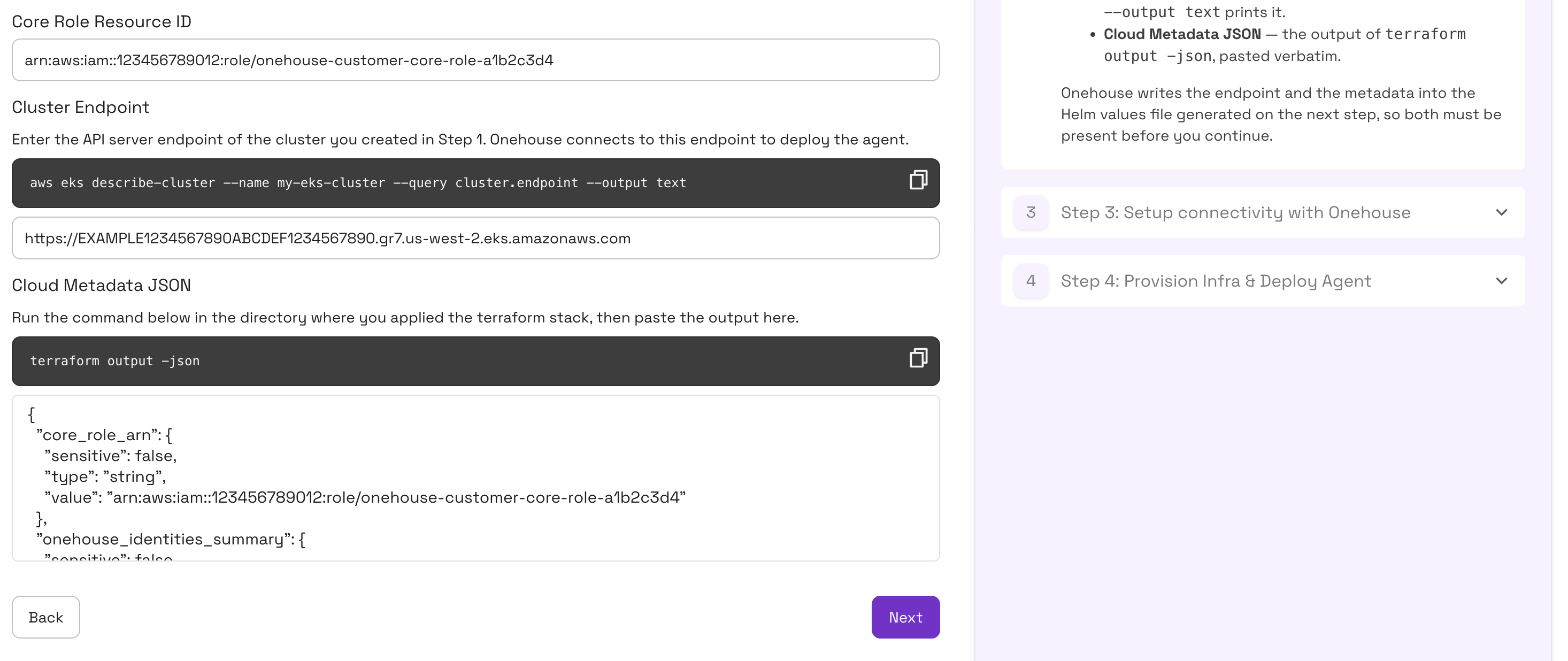
For Cloud Metadata JSON, enter the complete output of terraform output -json. Onehouse reads the onehouse_identities_summary.value key from it. Do not enter only the onehouse_identities_summary value.
Troubleshooting
EntityAlreadyExists on the IAM OIDC provider
The account already has an IAM OIDC provider for the cluster. The --with-oidc option of eksctl creates this provider.
Set createOidcProvider = false, and apply the stack again.
ResourceInUseException on the node access entry
The seed node group uses the Onehouse node role, so EKS already created an access entry for the role. This error does not occur with the eksctl command from the wizard, because that node group uses a role that eksctl creates.
Set createNodeRoleAccessEntry = false, and apply the stack again.
Protection of the core and support roles
If you delete or replace the core role or the support role, Onehouse loses access to your account, and ingestion stops. To recover, you must restore the roles and recreate the EKS access entries. EKS identifies a role by its unique ID. A new role with the same name has a different ID.
By default, a Terraform plan that deletes or replaces either role fails. Before you delete a stack, contact your Onehouse account team.
A change to the environment value rewrites the trust policy of the core and support roles, and revokes Onehouse access. Make sure that environment has the value from step 2 of the wizard before you apply the stack.