LakeBase on DBeaver
Connecting to Lakebase from Dbeaver (with Onehouse Catalog)
Use this when your LakeBase Cluster is configured with Onehouse Catalog. Authentication uses the username/password shown on the cluster's connection details page, and authorization is controlled by the Onehouse's EKS node role.
Step 1: Configure Connection Settings (if VPN is enabled)
Create a new PostgreSQL connection and enter your LakeBase cluster host, port, database name, username, and password on the Main tab.
You can find the cluster host, port, username, and password from the Onehouse console, under the Clusters page, click into your LakeBase cluster and copy the Endpoint URL and credentials. Sample connection properties:
Host: a3b7xxxxxxxxxxxxxxxxxxxxxxxx.us-west-1.elb.amazonaws.com
Port: 5432
Database: postgres
Username: <username from the cluster page>
Password: <password from the cluster page>
Refer to Get Connection Details for more details.
If VPN is not enabled, you need to configure a bastion host to connect to the cluster. Refer to Connect to your VPC for more details.
Sample connection settings when connecting through a bastion host:
Host: localhost
Port: 5432
Database: postgres
Username: <username from the cluster page>
Password: <password from the cluster page>
Step 2: Test the Connection
From the Connection settings page, click on Test Connection. The standard PostgreSQL driver bundled with DBeaver is sufficient — no additional driver setup is required.
Once the connection is successful, you will be able to query the tables. Authorization is enforced via the Onehouse's EKS node role.
Connecting to Lakebase from Dbeaver (with Glue Catalog)
Use this when your LakeBase Cluster is configured with Glue Catalog (without Lake Formation). The connection pattern is identical to the Onehouse Catalog case above — authentication uses the username/password from the cluster's connection details page, and authorization is controlled by the Onehouse's EKS node role.
Follow the same Onehouse Catalog steps: enter the host, port, database, username, and password from the cluster page, and connect using DBeaver's built-in PostgreSQL driver. No additional driver setup is required.
If VPN is not enabled, you need to configure a bastion host to connect to the cluster. Refer to Connect to your VPC for more details.
Connecting to Lakebase from Dbeaver (with Glue Catalog with LakeFormation)
Use this when your LakeBase Cluster is configured with Glue Catalog and Lake Formation. Authentication is delegated to your corporate identity provider (IdP) via the Onehouse LakeBase JDBC driver, and authorization is enforced by Lake Formation.
Step 1: Configure Connection Settings (if VPN is enabled)
Create a new PostgreSQL connection and enter your LakeBase cluster host, port, and database name on the Main tab.
You can find the cluster host and port from Onehouse console, under the Clusters page, click into your LakeBase cluster and copy the Endpoint URL. Sample connection properties:
Host: a3b7xxxxxxxxxxxxxxxxxxxxxxxx.us-west-1.elb.amazonaws.com
Port: 5432
Database: postgres
Username: user (the username is a placeholder, the connection will be established with your identity provider)
Password: user (the password is a placeholder, the connection will be established with your identity provider)
Refer to Get Connection Details for more details.
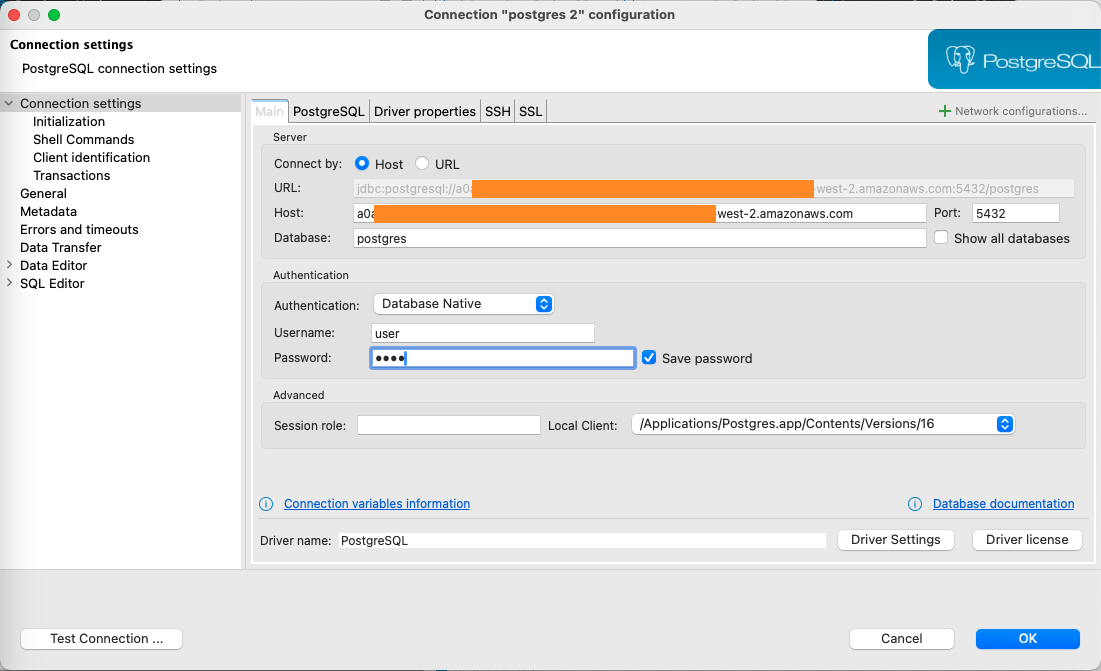
If VPN is not enabled, you need to configure a bastion host to connect to the cluster. Refer to Connect to your VPC for more details.
Sample connection settings:
Host: localhost
Port: 5432
Database: postgres
Username: user (the username is a placeholder, the connection will be established with your identity provider)
Password: user (the password is a placeholder, the connection will be established with your identity provider)
Step 2: Add the Driver
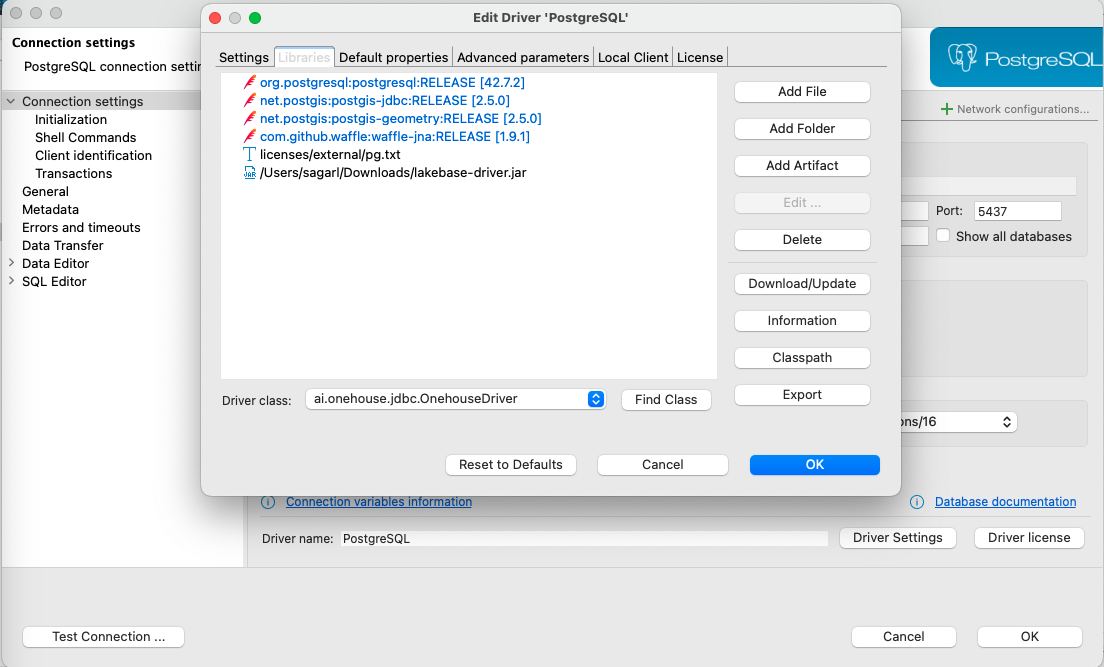
You can Download the LakeBase JDBC driver and proceed with the connection setup.
Open Connection settings > Driver Settings, select Add File. Add the Onehouse JDBC driver JAR nad download libraries (if prompted). And set the driver class to ai.onehouse.jdbc.OnehouseDriver, if the dropdown is not populated, click on Find Class.
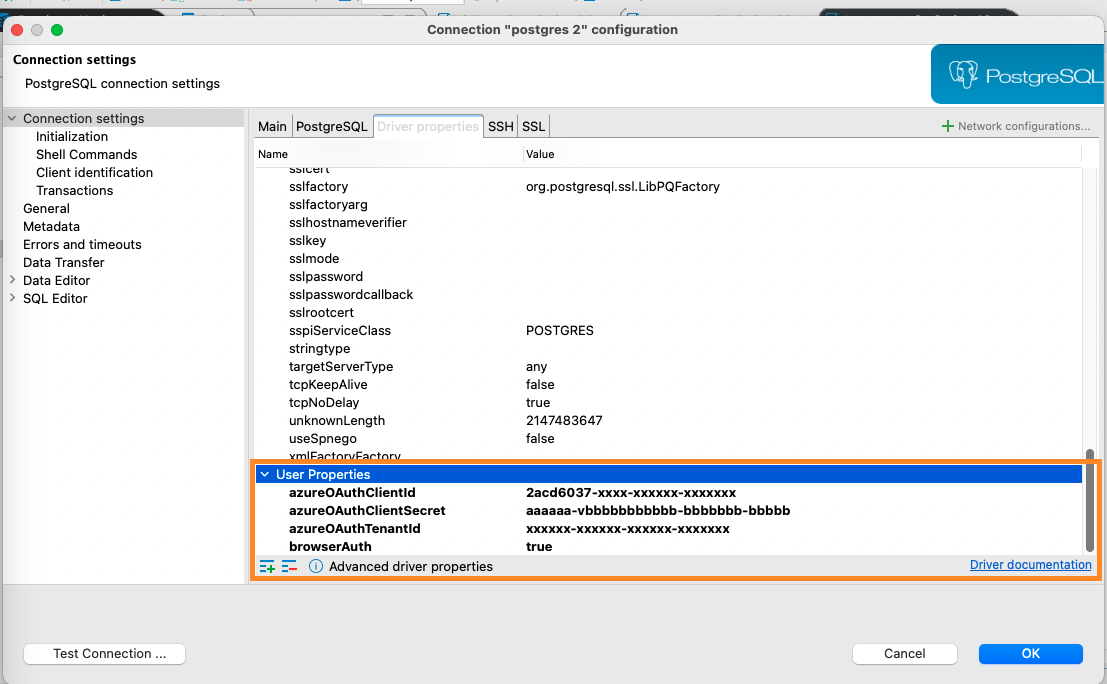
Step 3: Configure Authentication Properties
Go to the Driver Properties tab and add the properties for your identity provider (e.g., browserAuth, azureOAuthClientId, azureOAuthClientSecret, azureOAuthTenantId). Refer to the Supported Identity Providers section for the full list of properties for your IdP.
Step 4: Test the Connection
From the Connection settings page, click on Test Connection to test if the connection is successful. This will open a browser window to authenticate with your identity provider.
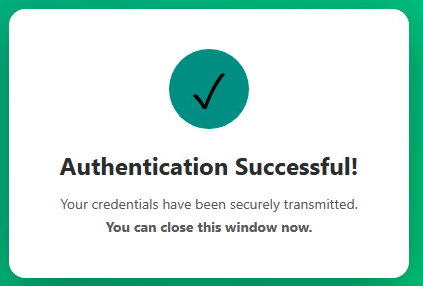
Once the connection is successful, you will be able to query the tables.
Step 5: (Optional) Specify an IAM Role
When using Lake Formation for access control, you can optionally specify an IAM role to assume for querying. If you don't specify a role, the first IAM role from your authentication token is used by default.
In DBeaver:
- Open your connection settings
- Go to the Driver Properties tab
- Add a new property with name
options - Set the value to
-c onehouse.lakebase_iam_role=arn:aws:iam::account:role/role-name
Troubleshooting
Error: "GetFieldAccess not supported by ExprPlanner"
If you see the error GetFieldAccess not supported by ExprPlanner when trying to connect, ensure that you have a compatible version of Postgres Driver. We have tested the connection with the following versions of Postgres Driver:
42.7.2