Table Service Offerings
Details about each table service and their settings are documented below. Configuration, trigger modes, and frequency settings are shared across table formats; where a service records its result differently on Apache Hudi and Apache Iceberg, that difference is called out in the service's own section.
| Service | Apache Hudi | Apache Iceberg |
|---|---|---|
| Clustering | Supported | Supported |
| Compaction | Supported (MERGE-ON-READ only) | Equivalent operation supported via Clustering |
| Cleaning | Supported | Coming soon |
| Metadata Sync | Supported | Supported |
For Apache Iceberg tables, Clustering covers the work that Compaction performs on Hudi tables — see Clustering on Apache Iceberg tables — and Metadata Sync registers the table to your connected catalogs. Cleaning for Iceberg tables is coming soon.
Clustering
Clustering helps improve query performance for your table by optimizing file sizes and sorting data. Learn more about clustering in the Apache Hudi docs.
You can set the following clustering configurations:
- Keys: Specify fields on which to cluster the data.
- Layout strategy: Select the strategy to use for clustering. By default, we recommend choosing Linear. For details on different layout strategies, you can see the Hudi layout strategies blog.
- Frequency: Specify how frequently to run clustering. By default, we recommend clustering data every 4 commits. Keep in mind that clustering more frequently will use more compute.
- Sorting: Enable sorting to co-locate data based on values of the tables sort field(s). When sorting is disabled, clustering will only perform file-sizing.
- Note: Sorting may not be disabled for tables created by Flows in mutable write mode, as they already have optimally-sized files.
- Bootstrap: Enable bootstrap to consider all existing and new data in the table for clustering. When bootstrap is disabled, only new data will be clustered.
- The bootstrap configuration only applies when the clustering table service is first created — it sets the initial checkpoint for the clustering plan. After creation, this setting has no effect (for both automatic and on-demand modes).
Usage Notes
- Clustering Batches: To prevent excessively long runs and out-of-memory errors, clustering plans are divided into batches based on data size and number of commits. Each clustering run processes one batch and maintains a backlog of remaining data to be clustered.
- Large datasets may require multiple runs to cluster all batches. Each run processes all or part of the remaining backlog. In Automatic mode, subsequent runs trigger automatically based on your configured frequency. In On-Demand mode, you must manually trigger each run.
- Data is sorted only within each batch, not across the entire table. This means clustering does not guarantee global sort order across your table.
- Accelerating Clustering: To speed up large clustering runs, increase the Max OCU for the Cluster or dedicate a separate Cluster to the table.
- Cleaning Process: Clustering rewrites data into new file groups, making the previous files inactive in the table. These inactive files remain in storage until removed by the cleaning service.
- Editing Sort Configurations: Editing the sort keys or sort strategy with bootstrap enabled will re-bootstrap the table. If bootstrap is not enabled, the new sort configurations will be applied only to new records.
- Re-clustering the Table: To re-cluster the entire table, edit the sort configurations with bootstrap enabled. Alternatively, you can delete and re-create the clustering table service with bootstrap enabled, but this will only re-cluster the full table if the previous clustering commit has been cleaned from the table by the cleaning service; otherwise, it will resume from the previous clustering checkpoint.
- Unpartitioned Tables: Clustering may complete almost instantly with no data optimized on an unpartitioned table. Verify progress via the table's timeline rather than the metrics UI alone, and confirm that bootstrap is enabled if you expect existing data to be clustered.
- Trigger Latency: The transition from
ActivetoRunningafter triggering a service is not instantaneous — it can take several minutes. If you poll status programmatically, use a polling interval of at least 1 minute rather than seconds.
Clustering on Apache Iceberg tables
Clustering runs on native Iceberg tables the same way it runs on Hudi tables — you configure sort keys and a frequency, and the service rewrites data files in the background. What differs is how you schedule it and how the result appears in the table's metadata.
Under the hood, the clustering service is integrated with Iceberg's
rewrite_data_files procedure. Because
that procedure both re-sorts records and re-sizes files, clustering on Iceberg covers the work that a separate
Compaction service performs on Hudi tables — you do not need to configure Compaction for an Iceberg table.
Creating the service
When you create a table service, choose the Table Format first. This filters the table picker, so only tables of the selected format can be chosen for the service.
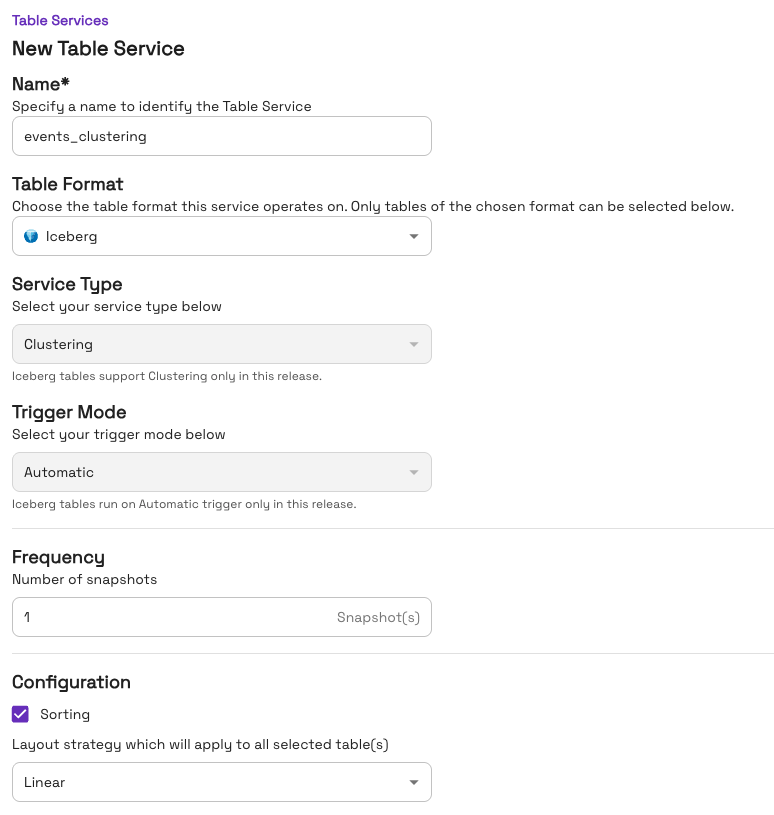
Two constraints apply to Iceberg tables in this release, and the form states both inline:
- Service Type — Iceberg tables support Clustering only.
- Trigger Mode — Iceberg tables run on the Automatic trigger only. On Demand mode is coming soon.
Frequency is measured in snapshots, not commits. Setting Number of snapshots to 1 plans a clustering run after
every new snapshot on the table.
Under Configuration, enable Sorting to co-locate records by the sort keys, then choose a Layout strategy. Onehouse supports Linear and Z-Order, which correspond to Iceberg's sort and zorder sort orders. When you select multiple tables for one service, the layout strategy applies to all of them.
Reviewing the configuration
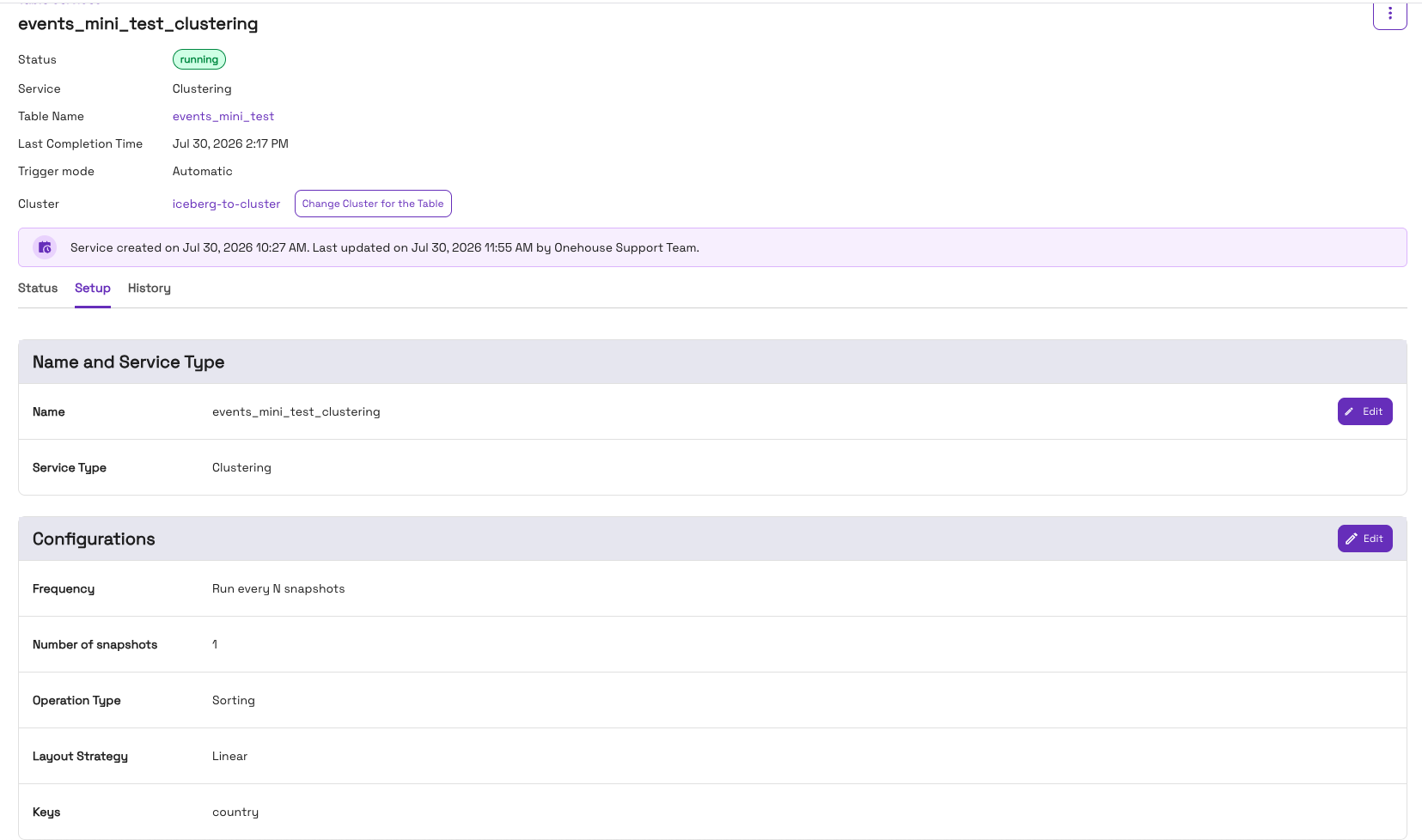
The Setup tab on the table service details page shows the active configuration:
Verifying that clustering ran
Clustering commits to an Iceberg table as a replace snapshot. The History tab lists each run with its
operation type and status:
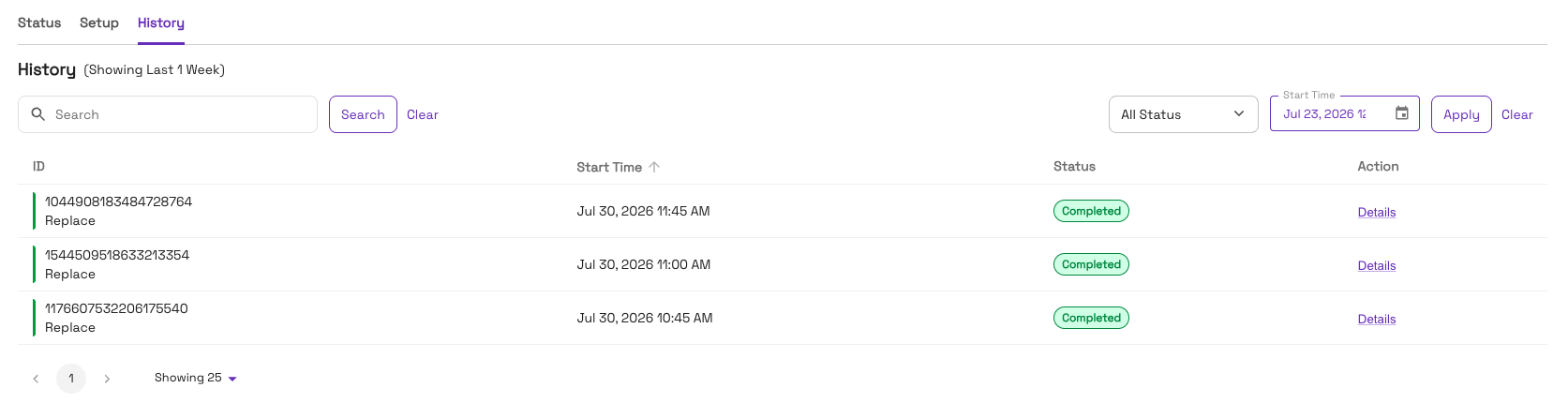
The ID shown for each run is the Iceberg snapshot ID of the commit it produced, so you can correlate a console
run directly with the table's metadata. Looking up 1044908183484728764 in the table's snapshot list returns the
matching replace snapshot:
op         added-data-files  deleted-data-files  total-records
append     1                 -                   6201000
replace    1                 6                   6508452     <- snapshot 1044908183484728764
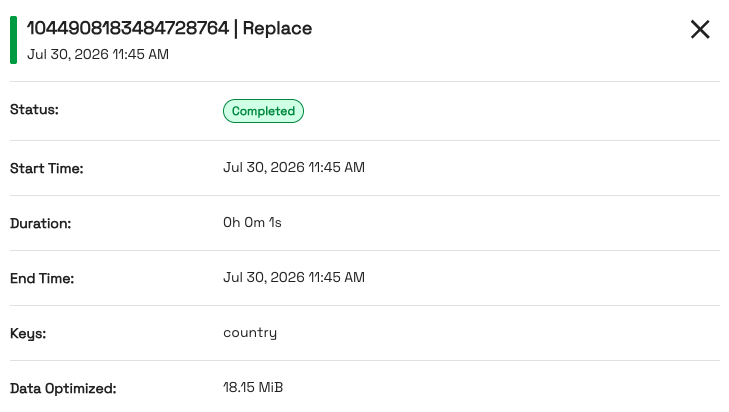
Each replace consolidates several data files into fewer, larger, sorted files. Click Details on any run for the
keys used and the volume rewritten:
The output files carry standard Iceberg writer file names. Do not rely on a Onehouse-specific file-name prefix to identify clustering output on Iceberg tables — for Iceberg the rewrite is committed through Iceberg's own writers.
DESCRIBE TABLE_SERVICE reporting numPartitionsToCluster: 0 with empty partitionsToCluster and
unclusteredPartitions arrays means the service has no outstanding backlog — it is caught up, not stalled. Confirm by
checking that errorMessage is empty and that recent replace snapshots exist in the table history.
Deletion vectors are materialized during clustering
On Iceberg v3 tables with MERGE-ON-READ write modes, DELETE and UPDATE record removed rows as deletion vectors
stored in Puffin files rather than as positional-delete Parquet files. A
single Puffin file can hold deletion vectors for several data files, so the count of .puffin files on storage is
normally lower than the number of deletion vectors reported in commit metadata.
When clustering rewrites a data file that has deletion vectors attached, the deleted rows are dropped physically and the
vectors no longer need to be applied. This shows up as a decrease in total-records on the replace snapshot.
total-records in an Iceberg snapshot summary counts rows before deletion vectors are applied, so it is not a live
row count for a MERGE-ON-READ table. Use SELECT COUNT(*) to validate row counts after running table services;
comparing total-records across snapshots will overstate the number of live rows.
Compaction
Compaction is available and required for MERGE-ON-READ tables. Compaction merges incoming data into the table, which enables efficient writes to the table. Learn more about Compaction in the Hudi docs.
You can set the following Compaction configurations:
- Frequency: Specify how frequently to run compaction. By default, we recommend compacting data every 4 commits. Keep in mind that compacting data more frequently will use more compute.
- Bytes per compaction: Specify how many bytes to compact in each compaction. By default, we recommend using 512GB (512,000MB) per compaction.
Compaction failures due to schema incompatibility
Compaction (and clustering) can fail with parquet decoding errors or schema-mismatch exceptions when the table's schema has evolved in ways that produce inconsistent base files. The two most common patterns:
- Nullability changes — earlier files have a column as
required, later files have it asoptional. The parquet reader fails withrequired != optionalfor the same column. Make the writer-side field nullable to stop producing new mixed-nullability files, then contact support to rewrite affected base files. - Legacy timestamp formats — very old base files written with the Julian (rather than proleptic Gregorian) calendar may fail under newer parquet readers. Contact support; resolution typically requires a one-time data rewrite.
Diagnose by comparing the writer-side schema against actual parquet file schemas in storage; report any mismatches when filing a support ticket.
Cleaning
Cleaning helps you reclaim space and keep your storage costs in check by removing old data committed to the table. Onehouse retains old data committed to the table to support time travel queries.
You can set the following Cleaning configurations:
- Frequency: Specify how frequently to run cleaning. By default, we recommend cleaning data every 4 commits.
- Time travel retention: Specify the number of days to retain commit history. Increasing this number will allow you to time travel further back, but will use more storage.
Empty Cleans
A scheduled cleaning run that finds no files eligible for deletion is called an empty clean. Empty cleans are surfaced in the History tab with a Completed (No-Op) status — distinct from the plain Completed status used for runs that reclaimed space.
Empty cleans are healthy and expected. Each run — empty or not — advances Hudi's incremental cleaning checkpoint, which records how far the cleaner has scanned. Without this checkpoint, a subsequent cleaning run would have to scan the entire table from scratch to find candidate files. By running on schedule and recording a checkpoint even when there is nothing to delete, the cleaner keeps future runs fast and incremental.
If you see a streak of Completed (No-Op) rows in the History tab, the cleaner is working as intended — your table simply did not have files past the time travel retention window during those runs.
Metadata Sync
Metadata Sync allows you to sync your table to one or more catalogs connected to Onehouse. This feature can be used to
- Register a table to any of the listed catalogs that support metadata sync.
- Translate an Apache Hudi table to an Apache Iceberg or a Delta Lake table.
- Additional features like adding custom database for Iceberg tables in Glue and customizing the table name suffix for Iceberg tables are available through the ALTER SERVICE IN TABLE API.